


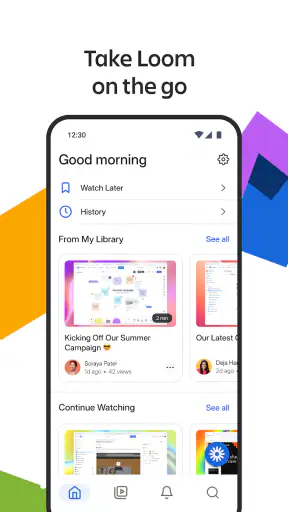
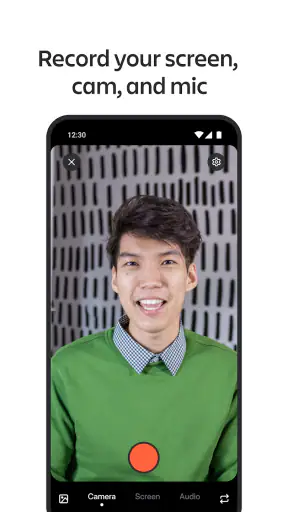
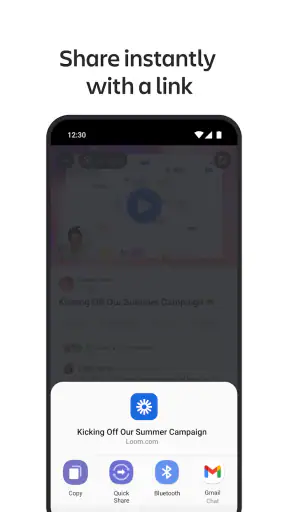
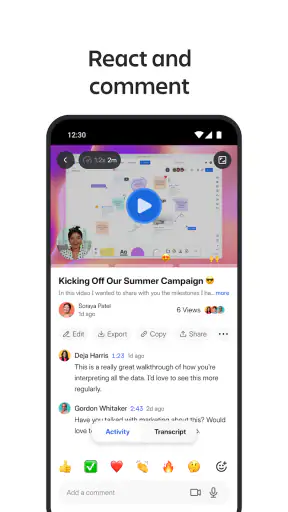
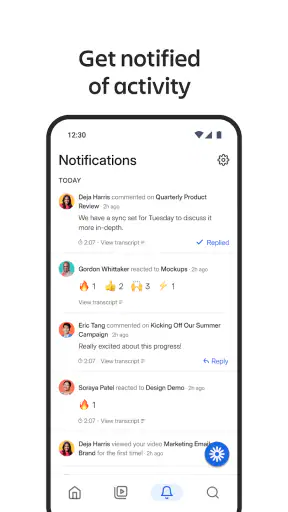
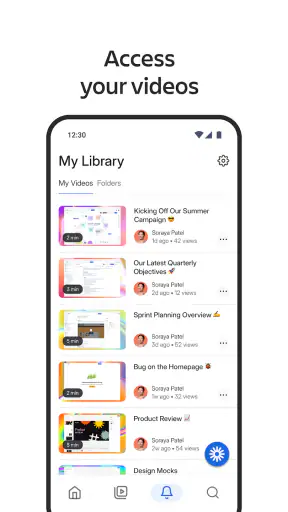
I tested Loom – Screen and Cam Recorder as a mobile business tool, and my first impression was that it is less about making polished videos and more about removing the delay between noticing something and explaining it. On a phone, that difference matters. A written message can take several paragraphs, while a short recording can show a screen, a process, or a problem in one pass. The app gives that idea a practical home for people who need to stay connected with colleagues while away from a desk.
It is a free app in the Business category, developed by Loom, Inc, and it is rated for Everyone. Its Android listing shows over a million installs, a 3.2 average from around 5.6 thousand ratings, and the current version is 283.1.0. Those figures suggest a widely used product with a mixed mobile experience rather than a universally loved one. After using it, I understand why: the central recording idea is useful, but the quality of the experience depends heavily on your connection, your phone, and how much editing or organization you expect.
How Loom feels when the network is part of the workflow
The most important thing to understand is that this is a connected communication tool. Recording is only the first step. The real value appears when the result can move quickly from your phone to the people who need to see it. That makes a strong connection feel almost invisible: I can capture a screen or camera explanation, finish, and continue with the conversation instead of turning the recording into a separate file-management task.
That same design creates a clear weakness. A recording app can feel simple while you are capturing, but a slow or unstable connection changes the mood immediately. Uploading becomes something to watch, and sharing stops feeling instant. I would not choose this as my only way to communicate during travel, in a crowded venue, or in an office with unreliable mobile coverage. For those situations, a short text summary or a locally saved recording made with the phone’s built-in tools may be less elegant but more predictable.
Before starting, I recommend deciding what the viewer actually needs. If the goal is to point out one setting, demonstrate one action, or give a quick personal update, keep the recording narrow. A focused clip is easier to upload and easier for a teammate to understand. If you try to explain an entire project in one take, the mobile format becomes less helpful, especially when the connection makes you wait before you can confirm that the recording is available.
The practical strength is not simply recording; it is shortening the distance between explanation and response. That is why the app works best for asynchronous teamwork. You do not need to arrange a meeting just to show a bug, explain a change, or give context to someone working in another time zone. You can speak naturally, show the relevant screen, and let the recipient watch when convenient.
What mobile recording is genuinely good at
On a phone, I found the concept especially useful for situations where typing is awkward. Imagine leaving a client meeting and realizing that a colleague needs to know which part of a presentation caused confusion. Instead of reconstructing the discussion in a long message, I can record a short explanation while the details are still fresh. The camera can add a human tone, while screen recording is better when the subject is a mobile interface or a sequence of taps.
Another strong use is field feedback. A salesperson, trainer, or support worker can show what they are seeing rather than describing it from memory. A product team may understand a problem faster when the recording includes the exact screen transition that caused confusion. This is more useful than a generic “it does not work” message, but it still requires discipline: personal information, customer details, and private notifications should not appear in the frame.
I also like the app for short internal updates that do not deserve a meeting. A manager can explain a priority change, or a designer can talk through a visual decision while pointing at the relevant area. The mobile camera makes the message feel more direct than a formal written announcement. However, that benefit disappears if the recording becomes a rambling monologue. Loom is at its best when the speaker knows the one thing the viewer should remember.
People who need long tutorials, carefully edited demonstrations, or broadcast-quality production should set their expectations differently. A phone-based recorder is convenient, but convenience is not the same as a full desktop studio. If your work depends on multiple scenes, detailed trimming, precise audio control, or complex visual overlays, a computer-based recording setup will usually be the better choice.
Small workflow choices that make a big difference
My first useful habit is to prepare the screen before recording. Close unrelated apps, remove distracting notifications, and open the exact page you intend to show. This is not just about appearance. It reduces retakes, limits accidental exposure of private information, and keeps the final upload smaller than a wandering recording full of pauses and wrong turns.
My second habit is to begin with the conclusion. Say what the viewer is looking at and what you want them to do with the information. On a mobile connection, every unnecessary minute adds friction, so a short introduction is more valuable than a long greeting. If the clip is meant to replace a meeting, I also finish with a clear next step, such as asking for a decision or identifying the screen that needs attention.
A less obvious trade-off is camera versus screen. The camera is useful when trust, emotion, or personal context matters. The screen is better when the viewer must follow a process. Trying to use both without a reason can make the message busier, especially on a small display. I would choose one as the main visual and use the other only when it adds information.
It is also worth checking the recording environment before pressing the button. Reflections can make a phone screen hard to read, while background noise can make a face-to-camera update difficult to follow. A quiet corner and a steady grip often improve the result more than repeating the same take. Loom makes the capture step accessible, but it cannot correct poor lighting, distracting movement, or an unclear explanation.
When a mobile context changes the experience
The phone version makes most sense when the phone is where the work is happening. If I am reviewing a mobile website, checking an app flow, or responding to a field issue, recording directly from the device avoids the awkward workaround of describing what I see on another screen. That directness is the main reason I would install it rather than relying only on a desktop recorder.
It is less compelling when the work already lives on a large monitor. Desktop alternatives generally provide more room to inspect a timeline, manage several windows, and prepare a carefully structured presentation. Loom’s mobile role is not to replace every recording tool; it is to make quick, personal, on-the-go explanations practical.
A realistic everyday scenario is a remote employee who notices a problem while commuting between appointments. They can capture a short mobile screen explanation, add spoken context, and send it to a teammate rather than waiting until they return to a laptop. That is valuable only if the connection is good enough to complete the handoff. If the network is weak, the sensible approach is to keep the message concise and avoid assuming that the recipient can view it immediately.
Battery and mobile data also shape the decision, even when the recording itself feels effortless. Video is more demanding than text, and repeated attempts can become wasteful. I would avoid using it for every minor question. A written message remains better for a one-line confirmation, a list of figures, or anything the recipient may need to search later. Loom is strongest when visual context saves more time than the recording costs.
What happens when a recording does not go smoothly
The most frustrating mobile moment is not usually pressing record; it is uncertainty after pressing stop. When a connection changes, I want to know whether the recording is safely available, still moving, or needs another attempt. That is where a connected workflow can feel less reassuring than a simple local camera app. I recommend waiting for a clear completion state before closing the app or moving on to another task.
If a recording fails or takes too long, I would not immediately repeat the entire explanation. First, check the connection and decide whether the message can be divided into smaller parts. A short clip is easier to retry and easier for a colleague to consume. For a complex issue, writing a temporary summary with the key point and then sending the recording later is a better recovery plan than leaving the recipient without any context.
Retakes are another area where expectations matter. Mobile recording rewards preparation, but it is not always worth chasing perfection. If the explanation is clear and the mistake does not change the meaning, sending it may be more efficient than recording again. On the other hand, if a notification, customer name, or confidential screen appeared, I would discard the attempt and start over. Speed should not override care.
For important updates, I would keep a lightweight backup in the communication channel already used by the team: a sentence explaining the issue, the requested action, and the fact that a recording follows. This does not replace the video, but it protects the workflow when the viewer cannot open it right away. It also makes the message easier to find later than a recording with no written context.
Using it without wasting data or attention
Being data-conscious is not only about the amount of video uploaded. It is also about the number of people who must watch it and the time they spend searching for the useful part. A recording that starts with several minutes of setup may consume more attention than a compact written note. I treat the app as a visual explanation tool, not as a default replacement for every message.
For mobile data, my approach is simple: record only the relevant window, keep the camera off when my face adds nothing, and avoid multiple exploratory takes. I also prefer to prepare the path first so the final clip does not include repeated loading screens or unrelated browsing. These choices make the recording clearer and reduce the chance that a weak connection turns a small update into a long upload.
Privacy deserves equal attention. Screen recording can reveal message previews, account names, documents, or notifications that were not part of the intended explanation. I would switch to a clean screen, silence sensitive alerts where possible, and review the visible content before sharing. This is particularly important for business use, because a recording can communicate more than the speaker realizes.
There is also a social cost to overusing video. Some teammates prefer searchable text, and some updates are easier to compare in a written format. I would use Loom for demonstrations, visual feedback, tone-sensitive updates, and problems that are difficult to describe. I would choose ordinary chat or a document for decisions, specifications, and information people will need to reference repeatedly.
Who should install it, and who should look elsewhere
I recommend Loom to remote teams, support staff, product testers, educators, and anyone who often explains screens from a phone. It is particularly useful for people who find written descriptions slow or incomplete, but who do not need a formal video-production suite. The free price makes it easy to try, and the Everyone age rating keeps the app broadly approachable for general business communication.
I would be more cautious if your work depends on dependable access in places with poor connectivity. The app’s usefulness is tied to the connected handoff, so a person who spends most of the day offline or on unstable networks may prefer a recorder that emphasizes local files first. I would also steer professional presenters toward a desktop solution when they need careful editing, elaborate layouts, or consistent production quality.
The rating of 3.2 from around 5.6 thousand ratings is a useful reminder to judge the mobile experience against your own workflow rather than assuming that popularity guarantees smooth performance. More than a million installs show that the idea has broad appeal, but the mixed score fits my view: the app can be excellent for the right short explanation and inconvenient when treated as a universal video tool.
My connectivity verdict
Loom – Screen and Cam Recorder succeeds when the phone is the fastest place to capture useful context and the network can complete the handoff without drama. I like it as a bridge between a live moment and an asynchronous team conversation. It saves me from writing long descriptions, makes mobile issues easier to demonstrate, and gives ordinary updates a more personal tone.
My recommendation comes with boundaries. Keep recordings focused, prepare the screen, protect private information, and have a text fallback for urgent or connection-sensitive messages. If you need a searchable record, a polished production, or a dependable workflow in weak-signal environments, another tool may suit you better. But for quick, visual business explanations made away from a desk, Loom is a practical free option whose value grows when your team understands when a recording is genuinely better than a message.


